A richer visual brief
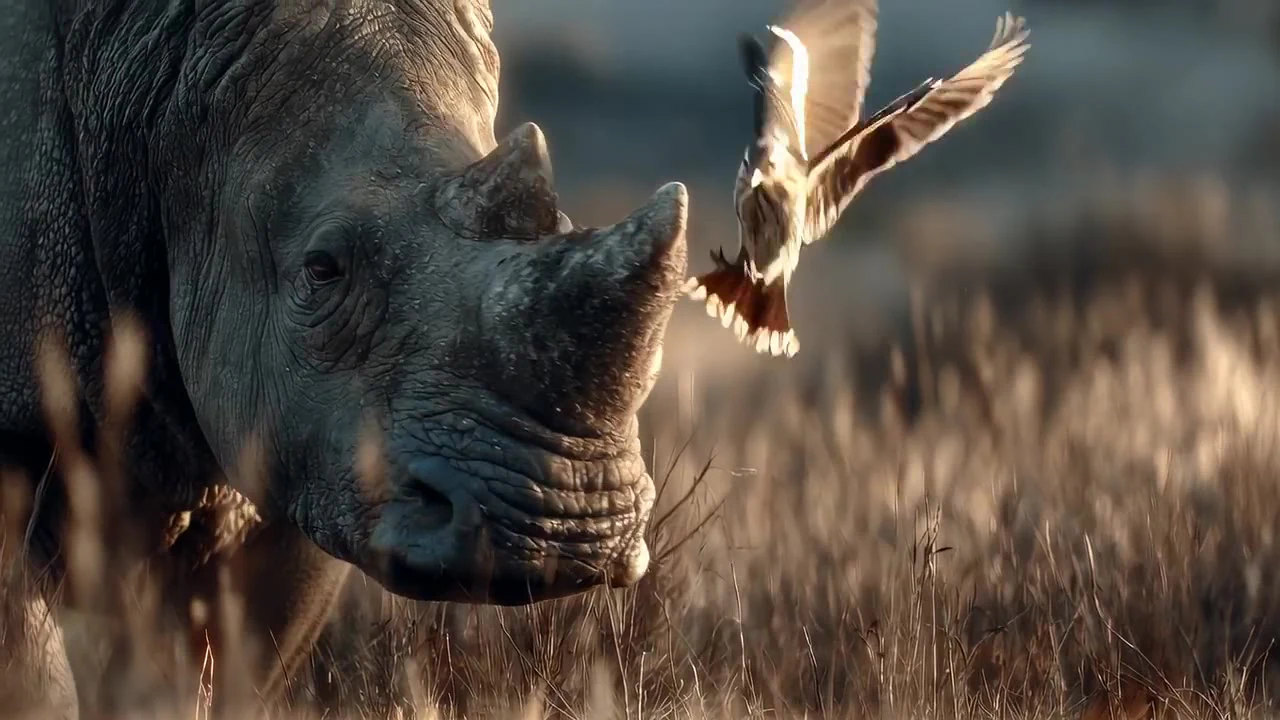
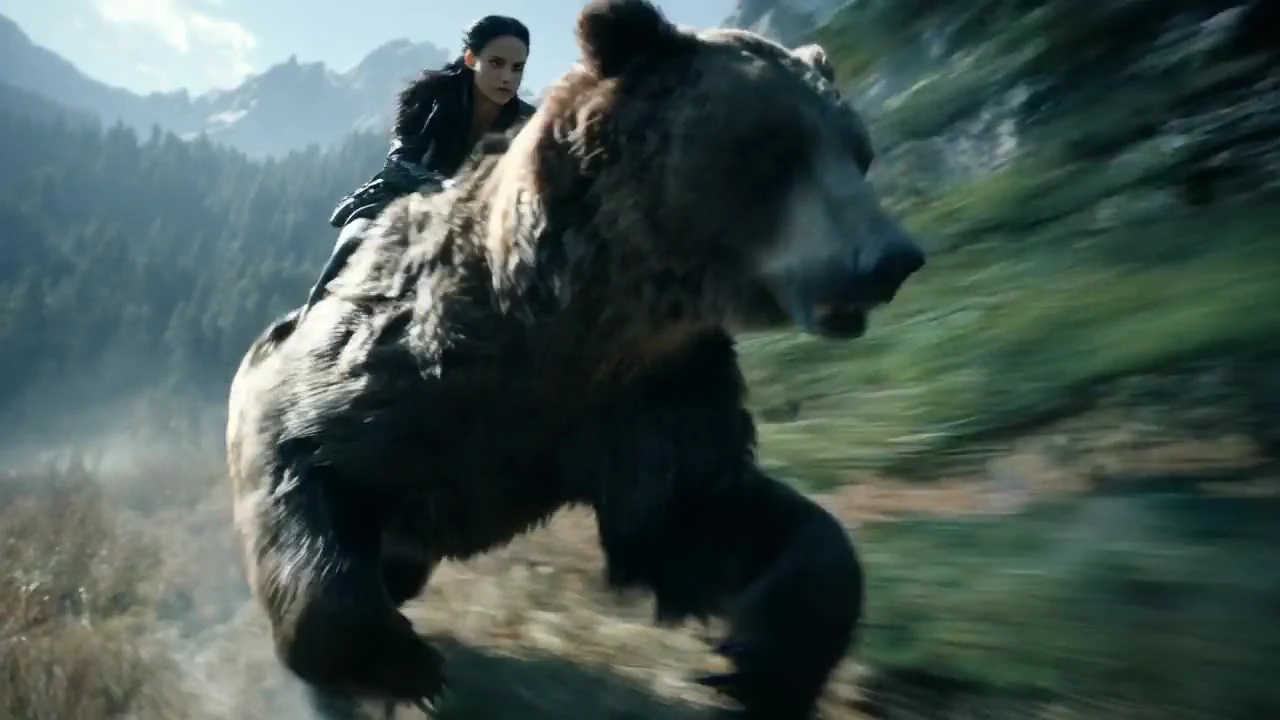
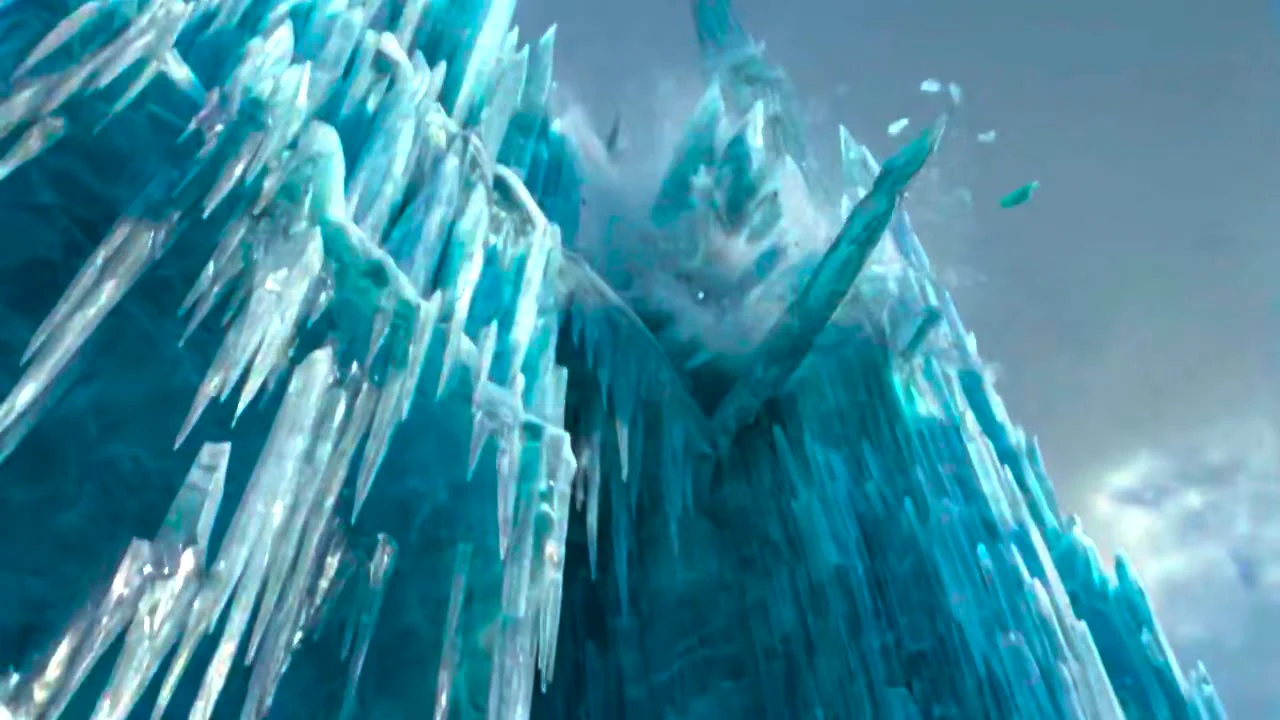
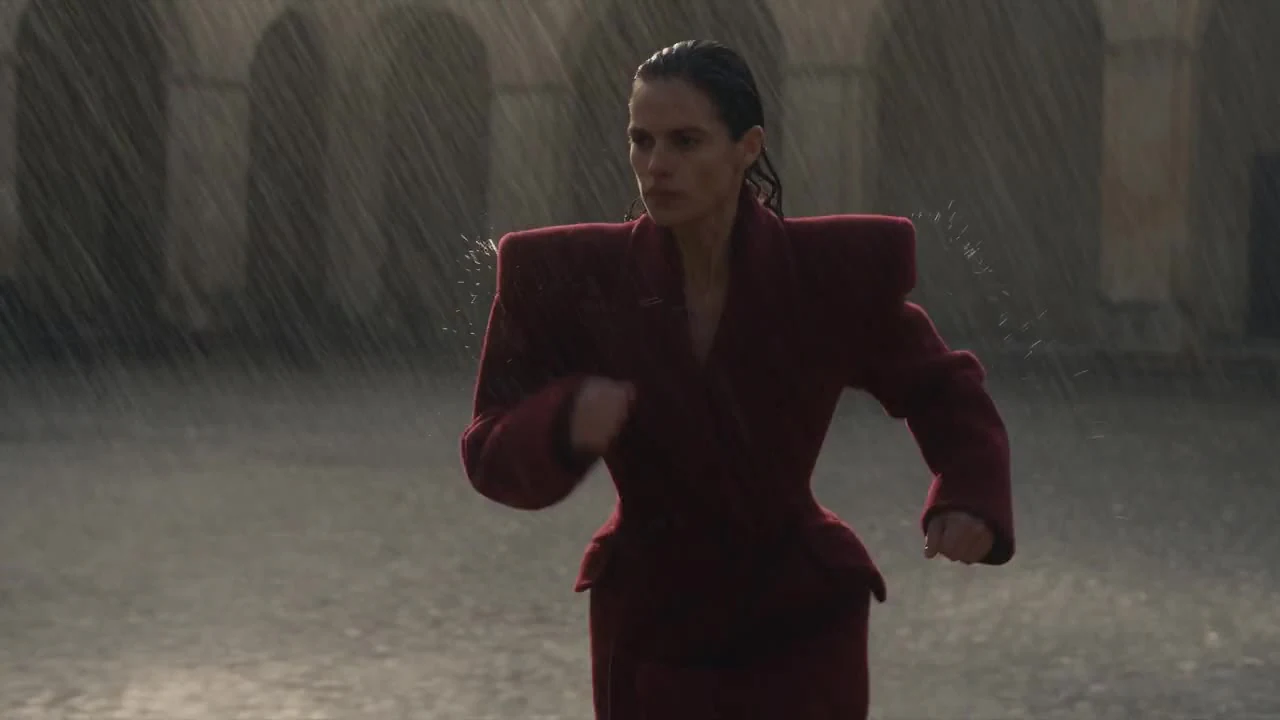
Bring character portraits, product details and scene images into the same creative brief. Multiple references give your prompt concrete visual context, making it easier to explore a shared style and composition.
Vidu Q4 brings text, image-to-video and multi-image references into one AI video tool. Develop character performances, product shots and cinematic scenes with natural-language motion and optional audio.
Vidu Q4 is an AI video tool for creating from text, photographs and multiple image references. It combines scene instructions, visual guidance, motion and optional audio in one workspace, with 4–15-second clips and 480p or 720p settings. Use it for product presentations, character scenes and cinematic concepts.
Bring character portraits, product details and scene images into the same creative brief. Multiple references give your prompt concrete visual context, making it easier to explore a shared style and composition.
Describe a subtle gesture, a camera push-in or a change in atmosphere with everyday language. Combine visible details with motion instructions to develop a shot that expresses your idea.
Explore photographic, animated or cinematic directions, and choose framing for the way your video will be viewed. Keep the source images and scene brief together while developing different creative versions.
Describe the subject, materials, light, action and camera in one prompt. Combine a visual reference with specific instructions such as a slow push-in, a turn toward the window or sunlight moving across a product.
Use up to nine images to communicate a character, product and setting together. Separate portraits, object details and location references give the scene a concrete visual foundation without requiring a lengthy appearance description.
Turn a portrait, product image or illustration into the starting point for a moving shot. Describe gestures, flowing fabric, changing light or camera motion; an optional last frame can guide the final composition.
Explore close-ups, tracking shots, slow reveals and orbiting camera ideas. Pair one main subject action with a camera move to build a readable shot, whether the brief is a quiet portrait or a dramatic product reveal.
Direct photographic, animated, illustrated or cinematic looks through prompts and source images. Describe the light, colour palette and setting to give product campaigns or character concepts a coherent art direction.
Add dialogue or ambient-sound instructions when generated audio is enabled, or prepare silent footage for your own soundtrack. Set the aspect ratio, duration and resolution for a product page, social post or video presentation.
Write the subject, setting and one main action. Include light, style and camera direction; upload a photo or visual references if the scene should follow an existing image.
Choose the model entrance and the input mode, then set the aspect ratio, 4–15-second duration and 480p or 720p resolution. Enable audio if the scene brief includes sound.
Save the prompt, images and settings as a draft. Adjust one element at a time to explore another version without losing your original inputs.
Compare creative focus, input modes, prompt direction and clip settings to choose your next video workflow.
| Creative capability | Vidu Q4 | Vidu Q3 |
|---|---|---|
| Creative focus | Image-led scenes, product visuals and character reference creation. | Text-led scenes, character actions and narrative short clips. |
| Prompt understanding | Natural-language direction for subjects, materials, lighting and camera movement. | Natural-language direction for scenes, actions, pacing and sound. |
| Image-to-video | A first frame defines the opening; a last frame is optional. | A first frame defines the opening; a last frame is optional. |
| Image references | Up to nine images for characters, products and locations. | Up to nine images for subjects and scene details. |
| Motion and audio | Motion and camera prompts with optional generated audio. | Action and scene-sound prompts with optional generated audio. |
| Clip settings | 4–15s · 480p / 720p | 4–15s · 480p / 720p |
| Best creative uses | Product shots, character concepts, illustrated scenes and brand presentations. | Story moments, narrative ads, animated concepts and social content. |
Text, photos and image references provide different ways to begin. A product photo can define the opening shot; a character and a location reference can supply the visual context for a new scene.
Bring appearance, camera movement and optional sound into one scene brief. Change the creative direction through text instead of rebuilding the asset selection for every idea.
Save inputs and settings together in a draft. Return to the original scene to revise the action, framing or style, and reuse images for the next shot in your project.
Use a product photo to explore a rotating view, a detail close-up or a change in light. Prepare short clips for product pages and campaign concepts; add exact labels and promotional text in your editor.
Combine character portraits with location references to prepare introductions, reactions and short interactions. Reuse the source artwork when developing the next shot in a larger story.
Bring product assets into a selected colour palette and setting. Explore an opening hook, a reveal or a final product shot before assembling the reviewed clips into an advertisement.
Animate a character gesture, drifting clouds or fabric moving in the wind. Source artwork sets the visual direction while the prompt describes how the scene changes over time.
Direct a head turn, a walk or a restrained camera move around a portrait or fashion image. Use light and background references to explore a campaign mood or an editorial concept.
Prepare a vertical visual hook or a wide cinematic scene. Save alternative prompts and settings so a creative team can compare the framing, atmosphere and action before choosing a direction.
Vidu Q4 is an AI video tool for creating from text, photographs and multiple image references. It combines scene instructions, visual guidance, motion and optional audio in one workspace, with 4–15-second clips and 480p or 720p settings. Use it for product presentations, character scenes and cinematic concepts.
Create short visual scenes for product introductions, character stories, animated concepts and social content. Text describes the action; photos and references add visual context.
The Q4 page centres on image-led and reference creation; the Q3 page centres on scene and narrative ideas. Both workspaces currently offer text, image and reference modes with the same duration and resolution choices.
Use image to video and upload a first-frame image. Describe the movement you want and add a last frame only if the ending composition is important. JPG, PNG and WebP images are supported.
Reference mode accepts up to nine images. Use distinct images for the character, object or location and explain the role of each one in the prompt. Reference mode is separate from first/last-frame mode.
Enable generated audio and describe dialogue or ambient sound in the prompt, or switch audio off for footage you will score later. Listen to the full result before using it in a final edit.
The workspace offers integer durations from 4 to 15 seconds, 480p or 720p resolution, and selectable aspect ratios. Choose a format for the platform and the amount of action in the scene.
Creators, marketers, designers and e-commerce teams can use text and image workflows to develop product shots, character moments and campaign ideas. Beginners can start with one image and one clearly described action.
Choose the input mode, add a prompt and images where needed, then set the clip format. Save a draft to retain your input while revising.