A clear narrative beat
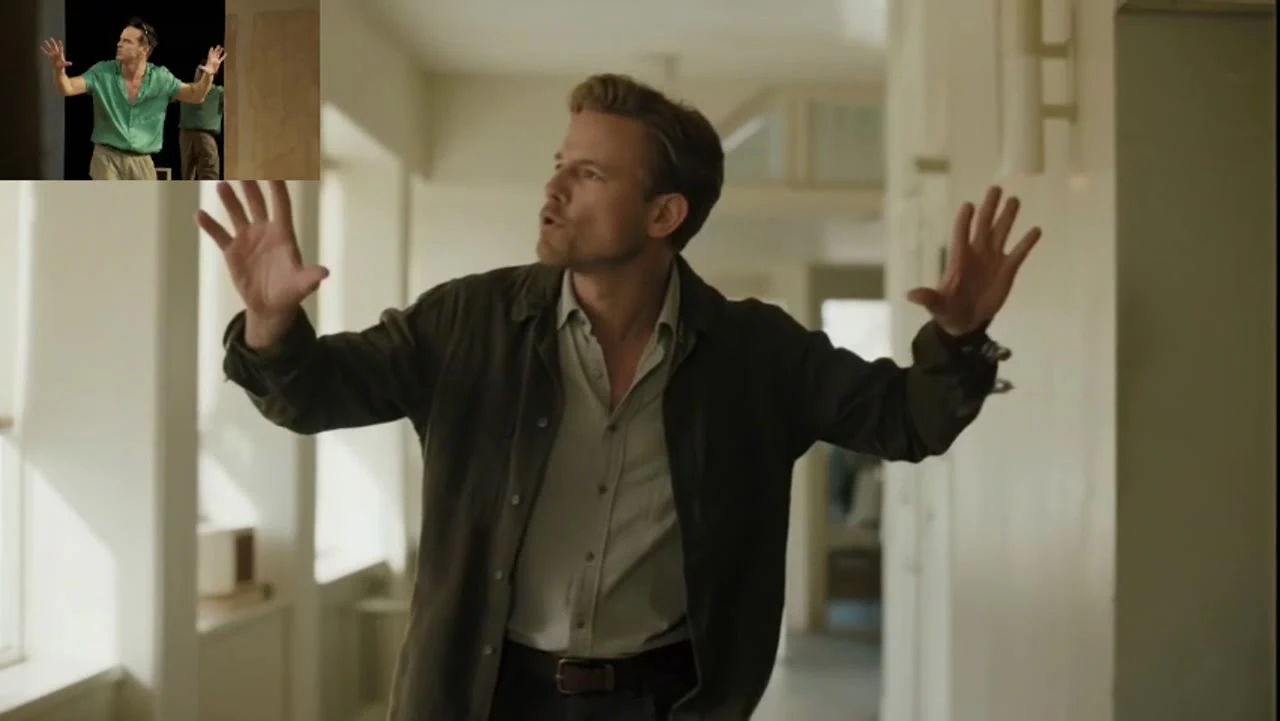
Build a short scene around a character reaction, a product reveal or a brief exchange. Define the opening, the main action and the final moment in one focused prompt.
Vidu Q3 brings scene descriptions, character motion, camera language and optional sound into a short-video workflow. Create from text or photos for narrative ads, animated concepts and social clips.
Create with Vidu Q3Vidu Q3 is an AI video tool that combines written scenes, image inputs, motion instructions and optional generated audio. Its workspace offers text-to-video, first and optional last frames, and multi-image references, with 4–15-second clips at 480p or 720p. It is designed for narrative moments, animated concepts and short-form content.
Build a short scene around a character reaction, a product reveal or a brief exchange. Define the opening, the main action and the final moment in one focused prompt.
Pair visible action with dialogue and ambient sound directions. Optional audio lets you explore an audible scene or prepare a silent clip for your own edit.
Develop separate shots from the same creative direction and keep your references available for reuse. Review the clips and arrange them into a sequence with your preferred editing tools.
Combine natural-language direction, visual references, motion and optional sound for expressive short-video ideas.
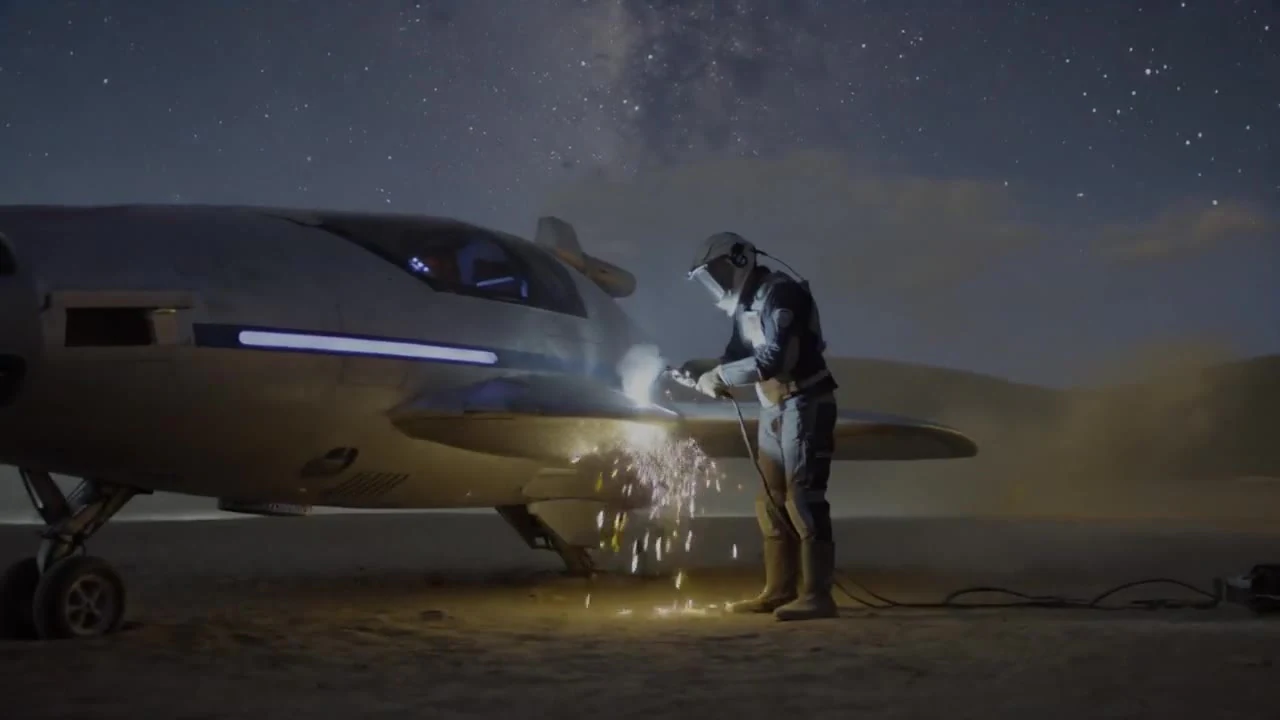
Describe a person, place and visible action to develop an original scene without a source image. Light, weather, camera direction and sound can share the same prompt, making it useful for concepts that do not yet have photographs or artwork.
Build a shot around a glance, a gesture, a short exchange or an interaction with an object. Describe the action in sequence and add the expression that matters, so the scene has a visible narrative beat.
When audio is enabled, include dialogue, footsteps, wind or another sound tied to the scene. You can also switch audio off and use the clip with your own music, narration and subtitles in the final edit.
Describe how the viewer approaches the subject: a wide establishing shot, a gentle push-in or a tracking view. A clear opening, main action and ending help the clip read as a complete moment rather than a collection of unrelated instructions.
Start from a photograph when the opening composition is already defined, or organize up to nine references for characters and locations. Image inputs add visible context to a written story and can be reused in another scene brief.
Explore photographic scenes, illustrated worlds and animated concepts with text and images. Choose the aspect ratio and 480p or 720p setting for the intended presentation, while keeping the original prompt and images available for another version.
Write the subject, setting and one main action. Include light, style and camera direction; upload a photo or visual references if the scene should follow an existing image.
Choose the model entrance and the input mode, then set the aspect ratio, 4–15-second duration and 480p or 720p resolution. Enable audio if the scene brief includes sound.
Save the prompt, images and settings as a draft. Adjust one element at a time to explore another version without losing your original inputs.
Compare creative focus, input modes, prompt direction and clip settings to choose your next video workflow.
| Creative capability | Vidu Q4 | Vidu Q3 |
|---|---|---|
| Creative focus | Image-led scenes, product visuals and character reference creation. | Text-led scenes, character actions and narrative short clips. |
| Prompt understanding | Natural-language direction for subjects, materials, lighting and camera movement. | Natural-language direction for scenes, actions, pacing and sound. |
| Image-to-video | A first frame defines the opening; a last frame is optional. | A first frame defines the opening; a last frame is optional. |
| Image references | Up to nine images for characters, products and locations. | Up to nine images for subjects and scene details. |
| Motion and audio | Motion and camera prompts with optional generated audio. | Action and scene-sound prompts with optional generated audio. |
| Clip settings | 4–15s · 480p / 720p | 4–15s · 480p / 720p |
| Best creative uses | Product shots, character concepts, illustrated scenes and brand presentations. | Story moments, narrative ads, animated concepts and social content. |
Build an advertisement around a short action: a customer discovers a product, a character reacts, or a scene reveals a solution. Keep each clip focused and assemble the sequence in a video editor.
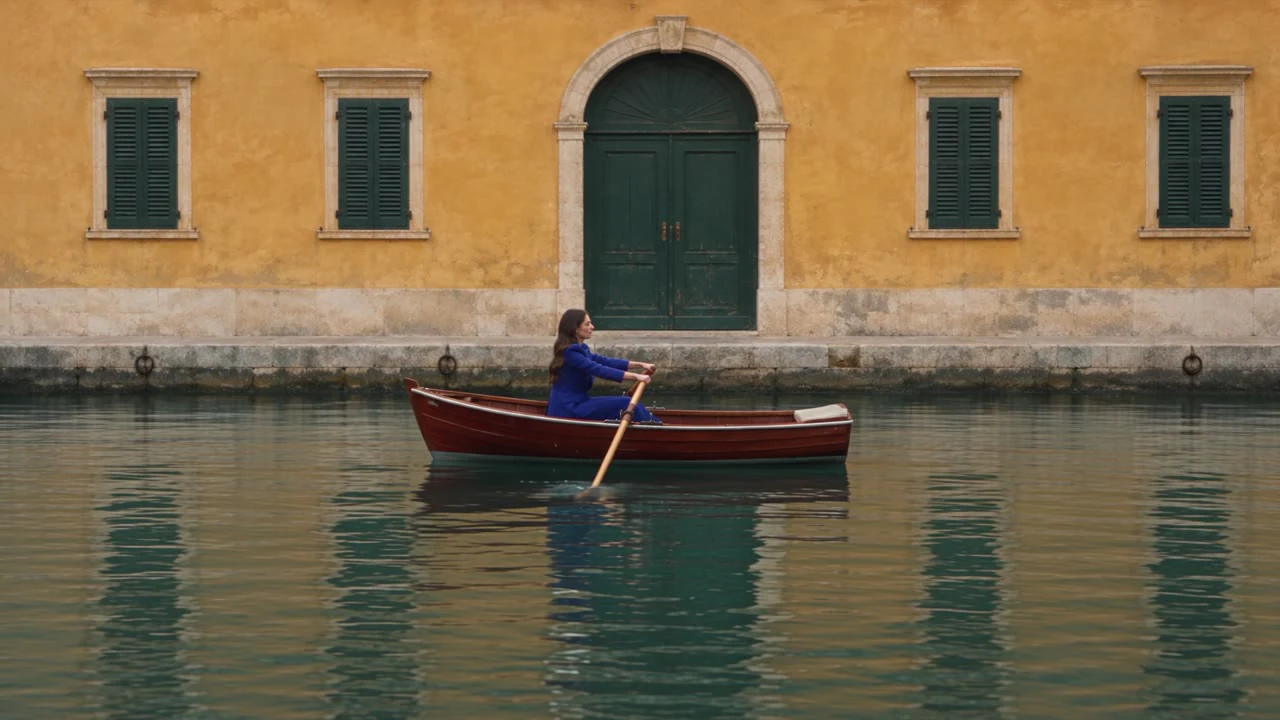
Create a glance, a brief exchange or a character arriving at a location. Dialogue and ambient-sound directions can add context when audio is enabled.
Describe an illustrated setting, a character action and the desired visual style. Use reference artwork when the project already has a defined character design or world.
Develop a visual opening, a humorous moment or a short atmosphere shot in the right aspect ratio. Add captions, music and precise timing in the final edit.
Present a product within a everyday scene rather than an isolated image. Use a photo or references to supply the appearance, then describe the visible interaction and camera move.
Explore a location, a mood or a character beat before filming. Develop separate drafts for changes in light, framing and camera movement to compare alternative creative directions.
Vidu Q3 is an AI video tool that combines written scenes, image inputs, motion instructions and optional generated audio. Its workspace offers text-to-video, first and optional last frames, and multi-image references, with 4–15-second clips at 480p or 720p. It is designed for narrative moments, animated concepts and short-form content.
Create short visual scenes for product introductions, character stories, animated concepts and social content. Text describes the action; photos and references add visual context.
The Q4 page centres on image-led and reference creation; the Q3 page centres on scene and narrative ideas. Both workspaces currently offer text, image and reference modes with the same duration and resolution choices.
Use image to video and upload a first-frame image. Describe the movement you want and add a last frame only if the ending composition is important. JPG, PNG and WebP images are supported.
Reference mode accepts up to nine images. Use distinct images for the character, object or location and explain the role of each one in the prompt. Reference mode is separate from first/last-frame mode.
Enable generated audio and describe dialogue or ambient sound in the prompt, or switch audio off for footage you will score later. Listen to the full result before using it in a final edit.
The workspace offers integer durations from 4 to 15 seconds, 480p or 720p resolution, and selectable aspect ratios. Choose a format for the platform and the amount of action in the scene.
Creators, marketers, designers and e-commerce teams can use text and image workflows to develop product shots, character moments and campaign ideas. Beginners can start with one image and one clearly described action.
Choose the input mode, add a prompt and images where needed, then set the clip format. Save a draft to retain your input while revising.
Vidu Q3 brings scene descriptions, character motion, camera language and optional sound into a short-video workflow. Create from text or photos for narrative ads, animated concepts and social clips.
Create with Vidu Q3